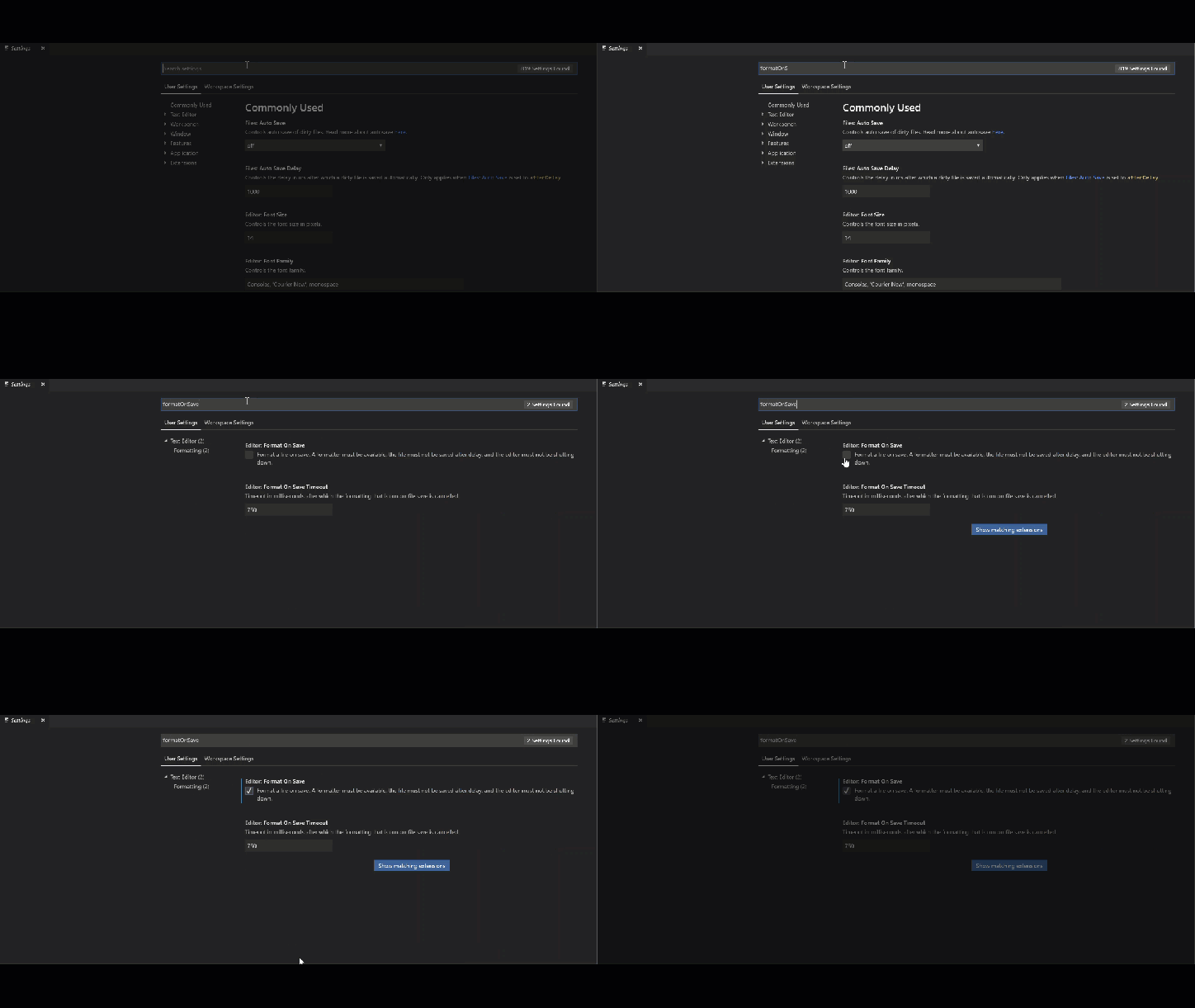
In my last post, I mentioned a tip to using the Format on Save option in VS Code. I’d like to take that one step further and mention how you can combine that with the Prettier – Javascript Formatter plugin for VS Code to make a really nice editing experience.
What is Prettier?
Prettier is an open source project (originally started by James Long) that is an opinionated JavaScript formatter. Prettier takes JavaScript code in, runs some of its formatting rules against it, and then spits out that JavaScript code with its formatting rules applied.
One of the things I love about it is it’s not completely rigid with its rules. It makes some “logical” choices that I would make myself. For instance, Prettier will make a short const array declaration a one liner, but a declaration with a bunch of items in the array, it will split out into multiple lines to avoid horizontal scrolling (see demo GIF at the end). I love that.
While I only mentioned JavaScript so far, technically Prettier can do more than just JavaScript. It can do CSS, LESS, SASS, TypeScript, JSX, Markdown, and more as well.
Note: Make sure you have prettier installed in the project you’re working in or globally via npm install prettier -g
Format on Save in VS Code
To enable Format on Save in VS Code:
File
Preferences
Settings
Search for Format On Save and check the box
Overriding Prettier settings
By default Prettier uses 2 spaces for your tab width for indenting your code. You can increase that to the VS Code default of 4 if you want extremely easily.
Add a .prettierrc file in the root of your project next to your package.json
Add a new object with a tabWidth property and a value of 4
Note how VS Code gives autocompletion for the different settings within Prettier. How awesome is that!?!
Now start saving your files and watch Prettier in action.
Note: you can configure these settings directly in VS Code as well without a config file, but I think it’s better to use a .prettierrc file, especially when you’re on a team. That way anytime you or someone else works on that codebase, everyone is using the same settings.
Formatting is something I never worry about anymore
I find when using Prettier, along with the Format On Save option in VS Code, I don’t think about how to format my code anymore. I don’t ever wonder “oh should I put this on multiple lines or keep it all in one line?” Instead, I focus on solving my problem, hit Save and let Prettier do the rest. It’s shocking how liberating this is. I end up with consistent formatting across my entire project instead of just doing whatever I felt was best at the time.
Prettier in Action
Enforcing Prettier
If you’d like to learn more about how to enforce Prettier via git commit hooks, checkout my blog post on Husky and Lint Staged with Prettier that even works with nested folders.
There are tons of times where you want to delete from the right of your cursor, while preserving everything to the left of your cursor.
Today the most common way is to do SHIFT + END to highlight it all and then hit DEL, such as below.
However, there’s a way to delete to the end of the line by binding a keyboard shortcut to Edit.DeleteToEOL. By default this is not bound to any keyboard shortcut, so you’ll have to pick one.
If you haven’t overrode a keyboard shortcut before, you can go to Tools => Options => Keyboard, and then type Edit.DeleteToEOL in the “Show commands containing” text box. You can then type a keyboard
I removed all previous bindings to CTRL + L and bound Edit.DeleteToEOL to that, but you can pick whatever you want.
Now when I hit CTRL + L it removes everything after my cursor, saving me some keyboard strokes.
With that said – I will keep this post updated as I see changes being made,and will eventually remove the Caveat above.
tldr;
Register your Health Checks in your ConfigureServices method.
This file contains hidden or bidirectional Unicode text that may be interpreted or compiled differently than what appears below. To review, open the file in an editor that reveals hidden Unicode characters. Learn more about bidirectional Unicode characters
checks.AddSqlCheck("Local DB Check", "Server=(localdb)\\mssqllocaldb;Database=aspnet-WebApplication1;Trusted_Connection=True;MultipleActiveResultSets=true");
Inject in an IHealthCheckService and call CheckHealthAsync to run all your Health Checks, or another method like RunCheckAsync or RunGroupAsync to run a subset of the Health Checks you registered in ConfigureServices.
This file contains hidden or bidirectional Unicode text that may be interpreted or compiled differently than what appears below. To review, open the file in an editor that reveals hidden Unicode characters. Learn more about bidirectional Unicode characters
Health Checks are pretty much what the name implies. They are a way of checking to see if your application is healthy. Health Checks have become especially critical as more and more applications are moving to a microservice-style architecture. While microservice architectures have many benefits, one of the downsides is there is a higher operations overhead to ensuring all of these services are running. Rather than monitoring the health of one majestic monolith, you need to monitor the status of many different services, which are usually responsible for one thing and one thing only. Health Checks are usually used in combination with a service discovery tool such as Consul that monitor your microservices for when they become healthy and unhealthy. If you use Consul for service discovery as well, Consul will automatically route traffic away from your unhealthy microservices and only serve traffic to your healthy microservices… which is awesome.
How do I implement a Health Check?
There are a few different ways to do Health Checks, but the most common way is exposing an HTTP endpoint to your application dedicated to doing Health Checks. Typically you will return a status code of 200 if everything is good, and any non-2xx code means something went wrong. For example, you might return a 500 if something went wrong along with a JSON payload of what exactly went wrong.
Common scenarios to Health Check
What you Health Check will be based on what your application/microservice does, but some common things:
Can my service connect to a database?
Can my service query a 3rd party API?
Likely making some read-only call
Can my service access the file system?
Is the Memory and/or CPU above a certain threshold?
Looking at the Microsoft.AspNetCore.HealthChecks package
Microsoft is on the verge of shipping a set of Health Check packages to help you solve this problem in a consistent way. If you look in the GitHub repo you will notice there is also a package for ASP.NET 4.x as well under the Microsoft.AspNet.HealthChecks namespace. There is a samples folder on that GitHub repo that contains how to wire that up if you’re interested in ASP.NET 4.x. I’m going to focus on the ASP.NET Core package for this blog post.
The Microsoft.AspNetCore.HealthChecks package targets netcoreapp1.0, but I suspect this will change to be either netcoreapp2.0 or netstandard2.0 by the time this RTM’s. The ASP.NET 4 project targets net461, and all the other libraries target netstandard1.3which works with both .NET Core and Full Framework.
Getting Started
The basic flow is that you register your health checks in your IoC container of choice (such as the built-in Microsoft one, although I prefer SimpleInjector due to the fantastic feature set, blazing speed, and ridiculously good documentation, but I’ll just use the built-in one for these demos). You register these Health Checks via a fluent HealthCheckBuilder API in your Startup‘s ConfigureServices method. This HealthCheckBuilder will build a HealthCheckService and register it as an IHealthCheckService in your IoC container.
That looks something like this:
This file contains hidden or bidirectional Unicode text that may be interpreted or compiled differently than what appears below. To review, open the file in an editor that reveals hidden Unicode characters. Learn more about bidirectional Unicode characters
So to run your Health Checks you inject in an IHealthCheckService into your Controller and then call CheckHealthAsync.
This file contains hidden or bidirectional Unicode text that may be interpreted or compiled differently than what appears below. To review, open the file in an editor that reveals hidden Unicode characters. Learn more about bidirectional Unicode characters
You get back a CompositeHealthCheckResult which is a summary of all of your health checks that you registered in your AddHealthChecks method in your Startup class.
That CompositeHealthCheckResult class has a CheckStatus property which is an enum. That enum has 4 options – Healthy, Unhealthy,Warning, and Unknown. You can determine what you want to do with each of those. In my simple example above, I consider anything other than Healthy to be a problem and return a 500 if it’s not Healthy.
You can also loop over the results of the CompositeHealthCheckResult by looking at the Results property and get even more detail about what exactly happened.
You can optionally run a single Health Check by calling RunCheckAsync and supplying the name of the Health Check that you registered in your ConfigureServices method (more on that later).
Out of the box Health Checks
Microsoft ships quite a few Health Checks out of the box that fit into the Common Scenarios section above. They are:
URL Health Check via AddUrlCheck
SQL Server Health Check via AddSqlCheck
PrivateMemorySizeCheck via AddPrivateMemorySizeCheck
VirtualMemorySizeCheck via AddVirtualMemorySizeCheck
WorkingSetCheck via AddWorkingSetCheck
A few Azure Health Checks (such as BLOB Storage, Table Storage, File Storage, and Queue storage).
Let’s take a look at the URL Health Check and the SQL Server Health Check.
URL Health Checks
The URL Health Check lets you specify a URL and then it will execute a GET to that URL and see if the URL returns a Success Status Code or not (any 2xx Status Code like 200).
You can register the URL Health Check by adding this.
This file contains hidden or bidirectional Unicode text that may be interpreted or compiled differently than what appears below. To review, open the file in an editor that reveals hidden Unicode characters. Learn more about bidirectional Unicode characters
Then you inject your IHealthCheckService and call CheckHealthAsync as shown above. If you want to just run this single Health Check, and not others you may have registered, you’ll need to know that the name is not configurable. The name will be UrlCheck(https://github.com). So you would run that single check with RunCheckAsync("UrlCheck(https://github.com)").
Another thing to note, that second parameter where I’m passing TimeSpan.FromMilliseconds(1) is the CacheDuration of the HealthCheckResult. The default is 5 minutes. So if you have some other service (like Consul) pinging your Health Check endpoint every minute, the HealthCheckResult will be the same for 5 minutes until the CacheDuration expires. To me, that doesn’t make a ton of sense, and I don’t want to risk an up to 5 minute delay on being notified when my service becomes unhealthy. So by only adding a 1 millisecond cache, I’m effectively adding no caching at all.
There is also another parameter to the AddUrlCheck method where you can pass a Func to the URL Checker. This is nice in scenarios such as:
You want to execute something other than a GET.
You need to do something special with the HttpRequest in general such as add Auth Headers or something.
You want to validate the response’s Content contains some specific words or HTML.
So the URL Check should satisfy just about any Web check you could possibly want to do with that flexibility.
Built-in SQL Server Health Checks
The SQL Check lets you specify a name and a connection string to connect to.
This file contains hidden or bidirectional Unicode text that may be interpreted or compiled differently than what appears below. To review, open the file in an editor that reveals hidden Unicode characters. Learn more about bidirectional Unicode characters
public void ConfigureServices(IServiceCollection services)
{
services.AddHealthChecks(checks =>
{
// Local DB Check is just the name of the Health Check. You can call it whatever you want.
checks.AddSqlCheck("SQL DB Check", "Server=(localdb)\\mssqllocaldb;Database=aspnet-WebApplication1;Trusted_Connection=True;MultipleActiveResultSets=true");
The first parameter, “SQL DB Check”, is just the name I chose. You can make it whatever makes sense to you. To run this check, as mentioned above, you would call this from IHealthCheckService.
Making your own custom Health Check
You can of course make your own custom Health Check. For me, most of my use cases are solved by the built-in ones, as I’m usually checking if an API is available (which I could do with the URL Check and overriding the checkFunc parameter) or I’m checking to see if a SQL Server is available. But you could implement your own if you are missing some functionality that you need such as checking if another DB store is available or how much free space a drive has.
To do that, derive from IHealthCheck and implement the interface. Below is an example of one that checks to make sure the C drive has at least 1 GB of free space.
This file contains hidden or bidirectional Unicode text that may be interpreted or compiled differently than what appears below. To review, open the file in an editor that reveals hidden Unicode characters. Learn more about bidirectional Unicode characters
Then in your ConfigureServices method, register the custom Health Check with the lifestyle that makes sense for the Health Check (Singleton, Scoped, Transient, etc.) and then add it to the AddHealthChecks registration that we’ve done before.
This file contains hidden or bidirectional Unicode text that may be interpreted or compiled differently than what appears below. To review, open the file in an editor that reveals hidden Unicode characters. Learn more about bidirectional Unicode characters
You can group your health checks together in a HealthCheckGroup if you want (such as all performance checks like CPU, Memory, Disk Space, etc. go under a group called “performance”) or you can let them live on their own and mix and match.
This file contains hidden or bidirectional Unicode text that may be interpreted or compiled differently than what appears below. To review, open the file in an editor that reveals hidden Unicode characters. Learn more about bidirectional Unicode characters
This enables you to do things like only call that Group of Health Checks via the RunGroupAsync method off of IHealthCheckService.
Security
Reminder – this is demo code. Some flaws include that my Health Check endpoint is unsecured and anyone can hit the endpoint. You will likely want to secure your Health Check endpoint, especially if it is on the Internet, so someone doesn’t spam your Health Check endpoint. There are many ways to do this, but are outside the scope of this blog post.
Some Feedback on the Design
Overall I think this abstraction is really useful, and I will use it myself once it RTM’s. The built-in health checks are nice, so that you don’t have to write that logic yourself. I’m all about punting as much logic onto someone else as possible.
There are some little things I wish were a little easier though.
It seems like the HealthCheckResult.CheckStatus == CheckStatus.Healthy code is going to be extremely common. It’d be nice if there was a helper prop off of HealthCheckResult like HealthCheckResult.IsHealthywhich does that computation for you. Much like HttpResponseMessage has a IsSuccessStatusCode property which is super useful. Although, I understand that “Healthy” is a relative term that’s tough to globally define. Some people might think that the CheckStatus.Warning would qualify as being Healthy and others wouldn’t. Ubiquitous languages are hard.
I wish there was a way you could override the name for the built-in Health Checks. Like the URL Health Check automatically takes on the Name UrlCheck(yourUrlHere) such as UrlCheck(http://google.com). You’ll need this name if you want to pull out the specific results of a Health Check. I had expected to be able to specify the name of each Health Check and store it in something like a HealthCheckConstants class for easily retrieval. Instead, I need to follow this convention when using the constants class, which isn’t the end of the world, but being able to override the name would be nice.
When calling the RunGroupAsync method, I wish you could just specify the group name rather than the HealthCheckGroup instance and let the RunGroupAsync method handle getting the HealthCheckGroup instance.
There should be no Cache Duration on the URL Check. 5 minutes is just too long of a default, and IMO there should be no Cache Duration at all on the URL Check. I control the frequency of how often my Health Check monitoring service hits my health check endpoint. If I want it to check my service every minute, then I’d probably expect the Health Check result to be fresh every time and not be cached.
Overall, I really like this package, and it seems like it’s going to be really useful. I plan on using this when it RTM’s, so I’ll keep this post up to date when I see they make changes to this package.
If you’ve ever seen this message when hitting your ASP.NET Core app:
“An error occurred while starting the application. .NET Framework <version number> | Microsoft.AspNetCore.Hosting version <version number> | Microsoft Windows <version number>”
It looks a little something like this:
What Happened?
It basically means something reallybad happened with your app. Some things that might have gone wrong:
You might not have the correct .NET Core version installed on the server.
You might be missing DLL’s
Something went wrong in your Program.cs or Startup.cs before any exception handling kicked in
Event Viewer (probably) won’t show you anything
If you’re running on Windows and behind IIS, you might immediately go to the Event Viewer to see what happened based on your previous ASP.NET knowledge. You’ll notice that the error is not there. This is because Event Logging must be wired up explicitly and you’ll need to use the Microsoft.Extensions.Logging.EventLog package, and depending on the error, you might not have a chance to even catch it to log to the Event Viewer.
How to figure what happened (if running on IIS)
Instead of the Event Viewer, if you’re running behind IIS, we can log the request out to a file. To do that:
Open your web.config
Change stdoutLogEnabled=true
Create a logs folder
Unfortunately, the AspNetCoreModule doesn’t create the folder for you by default
If you forget to create the logs folder, an error will be logged to the Event Viewer that says: Warning: Could not create stdoutLogFile \\?\YourPath\logs\stdout_timestamp.log, ErrorCode = -2147024893.
The “stdout” part of the value “.\logs\stdout” actually references the filename not the folder. Which is a bit confusing.
Run your request again, then open the \logs\stdout_*.log file
Note – you will want to turn this off after you’re done troubleshooting, as it is a performance hit.
So your web.config’s aspNetCore element should look something like this
Doing this will log all the requests out to this file and when the exception occurs, it will give you the full stack trace of what happened in the \logs\stdout_*.log file
Hope this helps. This happened to me a friend of mine. A friend. Yep. Definitely not me. My apps would never bomb.
UPDATE: Looks like this was fixed on 4/10/17 in the Update 1 26403.03 Release Notes. I would just upgrade to get the fix.
I got an error when upgrading to Visual Studio 2017 15.1 where it wouldn’t install the .NET Core workload. This prevented me from opening ASP.NET Core projects.
The product failed to install the listed workloads and components due to one or more package failures.
Incomplete workloads .NET Core cross-platform development (Microsoft.VisualStudio.Workload.NetCoreTools,version=15.0.26323.1) ASP.NET and web development (Microsoft.VisualStudio.Workload.NetWeb,version=15.0.26323.1)
Incomplete components .NET Core 1.0 – 1.1 development tools (Microsoft.NetCore.ComponentGroup.Web,version=15.0.26208.0) .NET Core 1.0.1 development tools (Microsoft.Net.Core.Component.SDK,version=15.0.26208.0) Container development tools (Microsoft.VisualStudio.Component.DockerTools,version=15.0.26323.1)
You can search for solutions using the information below, modify your selections for the above workloads and components and retry the installation, or remove the product from your machine.
Following is a collection of individual package failures that led to the incomplete workloads and components above. To search for existing reports of these specific problems, please copy and paste the URL from each package failure into a web browser. If the issue has already been reported, you can find solutions or workarounds there. If the issue has not been reported, you can create a new issue where other people will be able to find solutions or workarounds.
Package ‘Microsoft.Net.Core.SDK,version=15.0.26323.1,chip=x64’ failed to install. Search URL: https://aka.ms/VSSetupErrorReports?q=PackageId=Microsoft.Net.Core.SDK;PackageAction=Install;ReturnCode=1638 Impacted workloads .NET Core cross-platform development (Microsoft.VisualStudio.Workload.NetCoreTools,version=15.0.26323.1) ASP.NET and web development (Microsoft.VisualStudio.Workload.NetWeb,version=15.0.26323.1) Impacted components .NET Core 1.0 – 1.1 development tools (Microsoft.NetCore.ComponentGroup.Web,version=15.0.26208.0) .NET Core 1.0.1 development tools (Microsoft.Net.Core.Component.SDK,version=15.0.26208.0) Container development tools (Microsoft.VisualStudio.Component.DockerTools,version=15.0.26323.1) Log C:\Users\scotts\AppData\Local\Temp\dd_setup_20170406164409_003_Microsoft.Net.Core.SDK.log Details Command executed: “C:\ProgramData\Microsoft\VisualStudio\Packages\Microsoft.Net.Core.SDK,version=15.0.26323.1,chip=x64\dotnet-dev-win-x64.1.0.2.exe” “C:\Program Files (x86)\Microsoft Visual Studio\2017\Enterprise” /log “C:\Users\scotts\AppData\Local\Temp\dd_setup_20170406164409_003_Microsoft.Net.Core.SDK.log” /quiet /norestart Return code: 1638 Return code details: Another version of this product is already installed. Installation of this version cannot continue. To configure or remove the existing version of this product, use Add/Remove Programs on the Control Panel.
I ended up fixing this by:
Repairing Microsoft Visual C++ 2017 x64, then rebooting.
Repairing Microsoft Visual C++ 2017 x86, then rebooting.
Installing the missing features by opening up a ASP.NET Core project and right-clicking and clicking “Install Missing Features.” I’m sure you can get there by “modifying” the VS 2017 installation as well.
I recently discovered an xUnit configuration value that was super helpful, so thought I’d write up a quick blog post.
Out of the box, xUnit results look like this in Visual Studio Test Explorer:
About half of that is noise, specifically the namespace (xUnitDemo) and the class name (DrivingServiceIsValidAgeToDrive). The namespace isn’t really relevant to the test, and the class name is already available as the parent node above all the tests.
Solution
A simple change to your app.config will make this much easier to read.
Test Class Name: <ClassYou’reTesting><MethodYou’reTesting>
Example above, DrivingService is the class and IsValidAgeToDrive is the method
Test Method Name: Does<Something>_Given<Scenario>
Example above, DoesReturnTrue_GivenAgeIs16OrOlder
I’ve found this helps make it crystal clear what you’re testing. As a bonus, it makes it fairly easy to show the names to a BA/Stakeholder to make sure you’re covering all their scenarios.
In ASP.NET Core you can hook up a route to be your global exception handler. Simply add the ExceptionHandler middleware to your Startup.cs Configure method:
This file contains hidden or bidirectional Unicode text that may be interpreted or compiled differently than what appears below. To review, open the file in an editor that reveals hidden Unicode characters. Learn more about bidirectional Unicode characters
In your HomeController’s Error action, add this code to get the exception that was raised, as well as the route that caused the exception, and then you can do something with it (log to a database, send an email/text/fax/carrier pidgeon).
This file contains hidden or bidirectional Unicode text that may be interpreted or compiled differently than what appears below. To review, open the file in an editor that reveals hidden Unicode characters. Learn more about bidirectional Unicode characters
In pre-Core versions of ASP.NET, ELMAH was a popular library for doing Global Exception Handling. When unhandled exceptions occurred, it let you do things like log them to a database, send an e-mail, etc. automagically. Unfortunately, ELMAH is not ported to ASP.NET Core yet, so this led me to look at what other options were out there.
You could use one of the many of the Cloud providers for this like Application Insights, elmah.io (unaffiliated with the ELMAH project) or Exceptionless, but what if your company requires you to stay on-prem? You can use Exception Filters, but those have some limitations, and I found a simpler way (arguably) that I didn’t find a blog post on, so I thought I’d write one up.
Step 1 – Hook up the ExceptionHandler middleware
If you’ve done much with ASP.NET Core, this will look very familiar to you. First you need to hook up the ExceptionHandler middleware by adding this line to the Configure method of your Startup.cs:
This file contains hidden or bidirectional Unicode text that may be interpreted or compiled differently than what appears below. To review, open the file in an editor that reveals hidden Unicode characters. Learn more about bidirectional Unicode characters
What that does is anytime an uncaught exception happens, it will send the request to the route listening on the path you specified. In the example above (and the default in the templates), that’s the Error Action on the Home Controller, obviously you can just change that to whatever you want.
Often, you’ll only want to use the Exception Handler in non-development environments, and instead use the DeveloperExceptionPage in Development, which is the new YSOD that gives you a stack trace and other good information.
A sample Configure method showing this is below:
This file contains hidden or bidirectional Unicode text that may be interpreted or compiled differently than what appears below. To review, open the file in an editor that reveals hidden Unicode characters. Learn more about bidirectional Unicode characters
Step 2 – Use IExceptionHandlerPathFeature to get the exception and the Path
Make sure you have the Microsoft.AspNetCore.Diagnostics NuGet package in your .csproj, or if you have the Microsoft.AspNetCore meta-package, then that contains the Microsoft.AspNetCore.Diagnostics package, so you’re all set.
In the action of the controller you’re listening on (in the above case, the Error action on the Home Controller). Add the following code to your Error action.
This file contains hidden or bidirectional Unicode text that may be interpreted or compiled differently than what appears below. To review, open the file in an editor that reveals hidden Unicode characters. Learn more about bidirectional Unicode characters
The code is pretty straight forward, but let’s break it down. When an exception occurs, an IExceptionHandlerPathFeature is set. This contains two properties: 1) the Path of the route at which the exception occurred (such as /Home/Index), and 2) the Exception that occurred under the Error property. After that, you can do whatever you want with this information such as log it to a database, send an e-mail or trigger a carrier pidgeon (I believe the CarrierPidgeon API is coming back in .NET Standard 2.0).
If you want to see the code that makes IExceptionHandlerPathFeature work, you can view go to GitHub here and see the code where they set the Path in the ExceptionHandler middleware that we rigged up in our Startup class.
Make sure you get the right Feature
Be careful to make sure you get an IExceptionHandlerPathFeature with the Path in the name. There is also a IExceptionHandlerFeature without Path in the name that does not have the Path of where the exception occurred. Obviously, it’s pretty useful to know the source route of where the exception happened.
Make sure you catch any Exceptions in your Exception Handler Action
Also be careful and make sure to catch any exceptions in your Exception Handler Action. Causing a second exception in your exception handler action will cause the entire middleware to stop and you’ll end up with a blank page and a 500 status code. A scenario where this could happen is if you’re logging the exception to a database, but your database is down causing an exception.
Microsoft.AspNetCore.Diagnostics.Elm
Microsoft provides a package called ELM (Error Logging Middleware) that has some similar features to what ELMAH did. One of the main features ELM has is it allows you to see events on a web page that aggregates those events. You can read more about that here. However, there doesn’t seem to be any intent to extend ELM to do things like report to a database or send e-mails, based on this response from Eilon of the ASP.NET team here, and it is non-persistent through app restarts. In my scenarios, we don’t have a ton of use for this, as we prefer to be able to look and query for logs in a database, but I thought I’d mention it in case it is useful for your scenarios.
Additionally – AppDomains Coming Back in .NET Standard 2.0
If you’re using .NET Core (and not full framework), AppDomains are coming back in .NET Standard 2.0 to help with global exception handling, as described by Damian Edwards in the ASP.NET Community Standup here: https://youtu.be/_3y0QsXj2e4?t=31m17s
Don’t like using IExceptionHandlerPathFeature in your Controller action?
That’s ok. There’s another way to achieve this same thing using raw middleware, even bypassing IExceptionHandlerPathFeature completely, but I’ll save that for a followup blog post, as this is approaching 1000 words.
You no longer have to do anything. The app will precompile by default on publish.
Using full .NET Framework
The only thing you need is the package reference below.
This file contains hidden or bidirectional Unicode text that may be interpreted or compiled differently than what appears below. To review, open the file in an editor that reveals hidden Unicode characters. Learn more about bidirectional Unicode characters
Also – if you’re running on .NET Core and not Full Framework, then make sure your TargetFramework is netcoreapp1.1+ and not netcoreapp1.0.
What does precompiling views do?
Without precompiling your views, none of your views are compiled until they are requested for the first time. This results in an extra few seconds of wait time for the end user. Instead, most developers want to take a little bit of extra time in the publish step to precompile their views, so that users don’t have to eat that performance hit on the first request on every page.
Another benefit of precompiling your views is if there is a C# error on one of your .cshtml Razor pages (such as you changed the name of a property on your View Model and the rename didn’t update your .cshtml file), you will find out up front when you go to publish (via VS or a build server) rather than at run time when a user goes to request that page.
So now that we’ve seen what it does, let’s look at what it used to be in project.json.
What did it look like in project.json?
In project.json land, the pre-compiling of Views was a little verbose. You had to do the following:
Add a reference to “Microsoft.AspNetCore.Mvc.Razor.ViewCompilation.Design” under the “dependencies” section
Add a reference to “Microsoft.AspNetCore.Mvc.Razor.ViewCompilation.Tools” under the tools section.
Under buildOptions, set “preserveCompilationContext”to true
And finally you had to add a fairly verbose post-publish script to actually use the pre-compile tool.All of that looked like this (removing the rest of the project.json for brevity):
This file contains hidden or bidirectional Unicode text that may be interpreted or compiled differently than what appears below. To review, open the file in an editor that reveals hidden Unicode characters. Learn more about bidirectional Unicode characters
So the final output of a .csproj might look a little something like this. Note lines 5,6, and 32.
This file contains hidden or bidirectional Unicode text that may be interpreted or compiled differently than what appears below. To review, open the file in an editor that reveals hidden Unicode characters. Learn more about bidirectional Unicode characters
The primary use case for fallbacks in the Script Tag Helper is checking if a CDN is down and loading a local script instead. Another use case is you can use fallbacks to make it easy to polyfill missing JavaScript features in older browsers, while not having your users using the latest browsers take a network hit.
This file contains hidden or bidirectional Unicode text that may be interpreted or compiled differently than what appears below. To review, open the file in an editor that reveals hidden Unicode characters. Learn more about bidirectional Unicode characters
A polyfill is a fallback, written in JavaScript, that fills in a new JavaScript feature that is missing in an older browser and replicates the same functionality that newer browsers provide natively. This allows JavaScript code using the latest features only available in newer browsers to work on older browsers as well.
To polyfill the API, you simply just check if that API is available, and if not, load the polyfill that adds that API to your browser. That way, if your user is using the latest browser, you don’t punish them by downloading something they don’t need and hurting their performance.
How a Polyfill works
This JavaScript code will polyfill the “new” fetch API for making AJAX calls, that is currently available in all of the latest major browsers (Chrome, Edge, Firefox, Safari, etc.), but not in any of the Internet Explorer family tree (not even IE11).
This file contains hidden or bidirectional Unicode text that may be interpreted or compiled differently than what appears below. To review, open the file in an editor that reveals hidden Unicode characters. Learn more about bidirectional Unicode characters
First, the code looks to see if the Promise API is available, because fetch relies on Promises in order to work. If the API is not available, it loads a script from a CDN that polyfills the Promise API. It does the same thing for the fetch API.
The built-in Script Tag Helper – CDN fallback
The built-in Script Tag Helper in ASP.NET Core has fallback support baked in that generates code very close to this. The original intent of their fallback support was for attempting to load a script from a CDN. After loading from that CDN, test to see if a JavaScript API is available, and if it’s not (due to the CDN being down, blocked, or whatever) fall back to loading a local JavaScript file. That code looks like this:
This file contains hidden or bidirectional Unicode text that may be interpreted or compiled differently than what appears below. To review, open the file in an editor that reveals hidden Unicode characters. Learn more about bidirectional Unicode characters
What I haven’t seen anyone mention is to use this to conditionally polyfill if a JavaScript feature doesn’t exist. And it works right out of the box, simply omit the src attribute, and the rest will be taken care of:
This file contains hidden or bidirectional Unicode text that may be interpreted or compiled differently than what appears below. To review, open the file in an editor that reveals hidden Unicode characters. Learn more about bidirectional Unicode characters
The code above will generate nearly identical code to what’s in the first code sample. As mentioned above, fetch needs Promises to work, so I’m also polyfilling that conditionally as well. In the real world, I would likely bundle these two together (locally or using something like Polyfill.io) and make one network request, but using unpkg (an NPM CDN) was just for simplicity’s sake.
With the code above, I get the best of both worlds. My code using fetch runs on older browsers, but my users who use the latest browsers don’t take a network hit for something they don’t need. This same methodology will work for other ES2015 and above features and is nice for small apps that want to use some of the latest features and not have to deal with the build config of Babel or TypeScript transpiling down to ES5.
I’m not sure if this was an intended feature of the Script Tag Helper, but it’s a good use case for the fallback feature that I hadn’t seen anyone talk about, so I wanted to call attention to it.
And if you are lucky enough to only have to support Chrome at work. I assume this is you right now reading the hoops us plebes have to go through to get our code to run on all browsers: